Loop recording is the feature that lets a dash cam run continuously without ever filling up its memory card. The camera records in short segments — typically one, three, or five minutes each — and when the card runs out of free space, it deletes the oldest unprotected segment to make room for the new one. The footage on your card is therefore a rolling window of the recent past, not a permanent archive. Anything you want to keep has to be either protected on the camera or copied off the card before the loop reaches it.
Key Takeaways
- Loop recording writes video in short numbered files and overwrites the oldest unprotected file when the card is full, so your card holds a rolling window of recent driving, not everything you have ever recorded.
- Protected (event) files are excluded from the overwrite cycle. That is what keeps a crash clip safe — and it is also why a card crowded with protected files leaves the loop less and less space to work with.
- How far back your window reaches is simple arithmetic: card capacity divided by your camera’s recording bitrate. Higher resolution means a shorter window.
- Copy anything important off the card the same day. Protection on the camera is a stopgap, not storage.
- If your camera came with a card that works, you do not need to buy anything. Replace the card when the camera starts reporting errors, or when you want a longer window than the current capacity gives you.
How the Overwrite Cycle Actually Works
A dash cam does not record one enormous video file. It records a chain of short clips, closing each file and starting a new one every few minutes. That segmentation is what makes the loop possible: the camera always has a complete, playable oldest file it can delete cleanly.
When the card has free space, the camera simply adds the next file. When it does not, it deletes the oldest file in the normal recording folder and writes the new segment into the freed space. That cycle repeats for as long as the camera has power — a first-in, first-out buffer where footage ages out of the bottom as new footage arrives at the top.
Segmentation also limits how much you lose to a single failure. If power is cut mid-clip, only the file being written at that moment is at risk; the closed files before it are already complete on the card.
Why the clip length setting matters
Most cameras let you choose the segment length. The tradeoff is straightforward:
- Shorter clips (1 minute) are easier to review, quicker to email or upload, and lose less footage if a file is corrupted. But an incident that straddles two files means handing over two files.
- Longer clips (5 minutes) keep an incident whole more often and produce fewer files to sort through, at the cost of larger files that are slower to transfer.
Three minutes is a reasonable middle setting, and there is no quality penalty either way — clip length changes how the footage is divided, not how it looks.
Protected Files: The Part That Trips People Up
Every dash cam has some mechanism for taking a file out of the loop. Depending on the brand, it is called a protected, locked, event, or emergency file. The camera typically moves or flags the clip so the overwrite routine skips it. Two things trigger protection: the G-sensor detecting a sudden jolt, or you pressing the manual save button.
Here is the part that surprises people: protected files still occupy the card. They are excluded from deletion, not from storage. As protected files accumulate, the pool of space available for normal looping shrinks. In the worst case — a card where the protected folder has grown large enough to crowd out the loop — the camera can stop recording new footage or report a full card, because there is nothing left it is permitted to delete.
Cameras differ in how they handle this. Some cap the protected folder at a fixed share of the card and overwrite the oldest protected file once that share is full. Others simply stop. Your camera’s manual is the only reliable answer for your model; manufacturers document loop recording, memory card settings, and recording behavior per model line rather than universally (Thinkware Help Center). The two cases call for different habits, so check which yours has.
Tuning G-sensor sensitivity
The G-sensor is the most common cause of a protected folder filling up with clips nobody needs. Set too sensitive, it will lock a file every time you hit a pothole, close a door firmly, or brake hard at a light. Each false trigger is a clip that cannot be overwritten.
If you are finding locked clips of uneventful driving, step the sensitivity down one level and drive for a week. If you want it more sensitive, step it up one level and check what it catches. Adjust one level at a time — sensitivity scales vary between cameras, so the only meaningful calibration is what your car and your roads produce.
Some cameras also lock files automatically in parking mode when they detect motion or impact. If you park somewhere busy, that can fill the protected folder overnight. Reducing parking-mode sensitivity or turning the feature off when you do not need it solves that.
How Far Back Does Your Window Reach?
This is arithmetic, not guesswork. Recording bitrate determines file size per hour, and card capacity divided by that figure gives you your window. Your camera’s specifications or manual will list its bitrate; the table below shows the math for common values.
| Recording bitrate | Approx. size per hour | 64 GB card | 128 GB card | 256 GB card |
|---|---|---|---|---|
| 10 Mbps (1080p, single channel) | ~4.5 GB | ~14 hrs | ~28 hrs | ~57 hrs |
| 15 Mbps (1440p, single channel) | ~6.8 GB | ~9 hrs | ~19 hrs | ~38 hrs |
| 25 Mbps (4K, single channel) | ~11 GB | ~6 hrs | ~11 hrs | ~23 hrs |
| 40 Mbps (dual-channel 4K + rear) | ~18 GB | ~3.5 hrs | ~7 hrs | ~14 hrs |
These are calculated estimates using the standard conversion of bitrate to file size, and they are deliberately optimistic. Real windows come out shorter, because formatting overhead means usable capacity is below the advertised number, and any protected files reduce the looping pool further. Treat the figures as an upper bound.
The useful conclusion: a front-and-rear 4K setup on a 64 GB card may only hold a few hours. If you commute an hour each way, footage from Monday morning can be gone by Tuesday. That is fine for crash evidence you save immediately, and useless for anything you notice a week later.
Choosing and Maintaining the Card
Dash cams are one of the hardest workloads a memory card faces — continuous writing, in a hot or freezing car, indefinitely. Two properties matter.
Sustained write speed. Video recording needs a constant minimum write speed to avoid dropped frames, which is exactly what the SD Association’s Speed Class, UHS Speed Class, and Video Speed Class ratings certify. Choose a card whose class symbol matches or exceeds what your camera requires, and stay within the same rating family — a Class 10 host paired with a U1 card does not guarantee the expected write speed even though both are labelled 10 MB/s (SD Association).
Endurance. High-endurance cards are built for devices that record continuously. Samsung, for example, rates its PRO Endurance microSD line at up to 140,000 hours of recording and markets it specifically for monitoring devices (Samsung). Ratings and terminology vary by brand, so compare manufacturers’ own figures rather than assuming all “endurance” cards are equivalent.
Reformatting periodically is worth the two minutes. Repeatedly deleting and rewriting files fragments the card’s data area and slows writes, and Speed Class performance is only guaranteed for sequential writes to unfragmented space — the SD Association’s own guidance is that moving data off and reformatting may be needed to restore performance (SD Association). Once a month is a sensible cadence for daily driving. Use the camera’s own format function where available; if you format on a computer instead, the SD Association recommends its free SD Memory Card Formatter over the operating system’s built-in tool, which is not optimized for SD cards and can leave you with lower performance (SD Association).
Formatting erases everything, including protected files. Offload first, every time.
Getting Footage Off Before It Cycles Out
Protection buys you time; it does not preserve anything permanently. Build a habit:
- Note the time. If something happens, press the manual save button and remember roughly when it occurred.
- Offload the same day. Pull the card and use a reader, or use the camera’s Wi-Fi app if it has one.
- Copy, do not move. Leave the originals in place until you have confirmed the copies play.
- Keep the original files. Unedited files carry timestamps and, on GPS-equipped cameras, location and speed data. Screen recordings and re-encodes lose that.
- Check monthly. Confirm the camera is still recording, the card is not throwing errors, and the protected folder is not filling with false triggers.
When You Do Not Need to Buy Anything
Plenty of loop-recording problems are settings problems, and the answer is free:
- Window too short? Lower the resolution a step, or turn off the rear channel if you rarely need it. Both extend your window without spending anything.
- Protected folder full? Offload the clips worth keeping, delete the false triggers, and lower the G-sensor sensitivity.
- Camera reporting a full card? Format it after offloading. That usually clears both accumulated protected files and fragmentation.
Buy a new card when the camera reports read/write errors that survive a format, when your card’s class rating is below what the camera specifies, or when you want a longer window than the current capacity allows. A card that has worked reliably for months does not need pre-emptive replacement.
A Quick Troubleshooting Sequence
If loop recording has stopped working, work through these in order — they start with the checks that cost nothing:
- Is the card seated? Remove and reinsert it. A partially seated card can read but fail to write.
- Is the protected folder full? Check it on a computer. Offload and clear it.
- Format the card (after offloading) using the camera’s format function.
- Check the card’s class rating against what the manual specifies.
- Try a different card. If a known-good card works and the original does not, the card has failed.
- Check power. A camera that repeatedly loses power mid-clip can leave partial files that confuse the loop. Verify the cable and the socket.
If the camera still fails with a fresh, correctly rated, freshly formatted card, the problem is the camera, and it is time to contact the manufacturer.
The Limitations Worth Knowing
Loop recording is a storage strategy with real constraints. It does not archive; it forgets, deliberately and continuously. It cannot protect a clip you did not save and did not notice in time. The G-sensor cannot reliably distinguish a minor collision from a hard pothole, so it will both miss things and over-trigger. And a camera that loses power when you switch off the ignition records nothing while parked unless you have wired it for parking mode.
None of this makes the feature less useful — it is precisely what lets a camera run unattended for years on a card the size of a fingernail. It just means the habit matters more than the hardware. If you are still deciding where to mount the camera, our guide to where to place a dash cam covers the windshield positions that get a clear view without blocking yours.
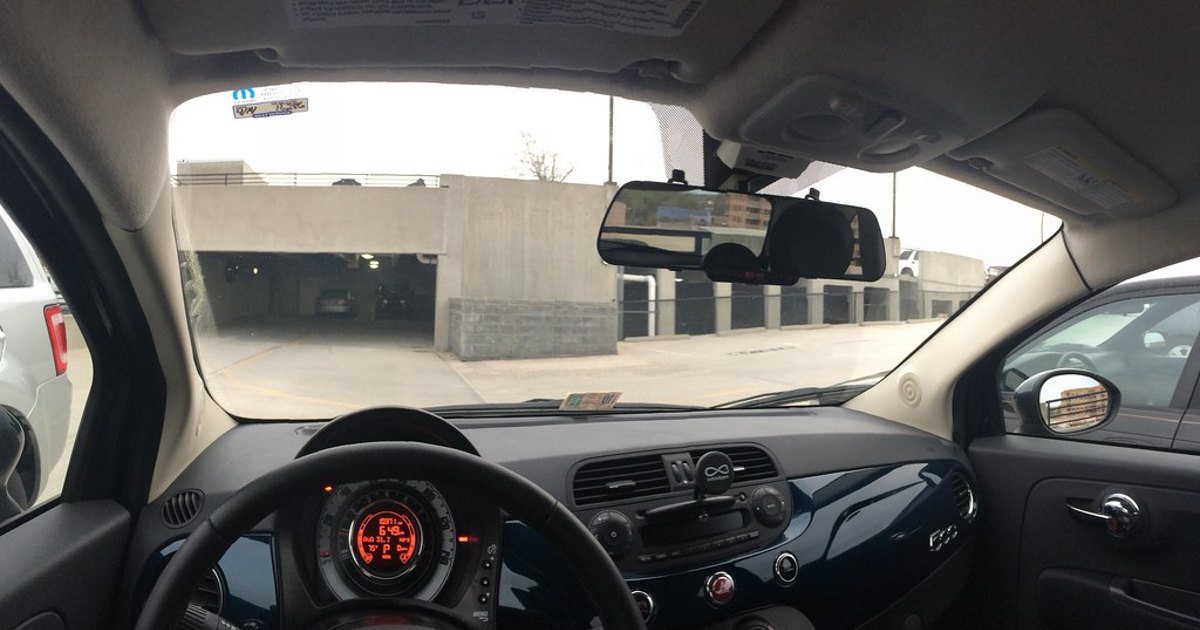
Photo: Fiat 500 with E-Prance (Novatek) rearview mirror dashcam by brownpau, Flickr, licensed under CC BY 2.0. Resized and cropped. Illustrative stock photo; no product testing is implied.