A G-sensor in a dash cam is a small accelerometer that watches for a sudden change in motion. When the force of a jolt crosses the camera’s set threshold, the camera can automatically protect the current video clip from ordinary loop-recording overwrite. That is why the feature is often called impact detection or event protection. On the Nextbase 322GW, for example, the manufacturer describes the G-sensor as an accelerometer that registers impact force and moves qualifying footage to a non-overwritable folder (Nextbase 322GW, accessed September 15, 2026).
Key Takeaways
- A G-sensor helps a dash cam recognize a hard jolt and automatically protect a related clip.
- A protected clip is kept out of the normal overwrite cycle, but it is not a permanent backup.
- Higher sensitivity catches smaller movements but can lock clips from potholes, speed bumps, hard braking, or acceleration.
- Parking-mode protection is useful only when the specific camera is configured and powered to operate while the vehicle is parked.
How a dash cam G-sensor works
The sensor measures acceleration, not blame. A collision can create a sharp change in motion, but so can an ugly pothole, a speed bump taken too quickly, hard braking, or a strong launch from a stop. The camera compares that movement with its chosen threshold. If the threshold is crossed, its software flags or relocates the relevant file as an event.
The exact menu labels, thresholds, clip length, and amount of video retained around an event vary by model. Still, the basic job is simple: automate the file-protection step when you may be too busy, startled, or unable to press a button. Nextbase specifically lists potholes, heavy acceleration, braking, and speed bumps as possible 322GW triggers, and offers high, medium, low, and off G-sensor settings on that model (Nextbase 322GW, accessed September 15, 2026).
A G-sensor is not the video camera itself. It does not make a blurry recording sharp, create video when the camera was off, or independently decide what happened. Its useful role is to tell the dash cam, in effect, “keep this clip from being routinely replaced.”
G-sensor protection versus loop recording
Most dash cams record continuously in short files. When the memory card fills, loop recording makes room by replacing the oldest unprotected clips. A G-sensor changes the fate of an event clip, not the camera’s whole recording system.
| Normal loop recording | G-sensor event protection |
|---|---|
| The camera makes a rolling sequence of video files. | The camera identifies a file associated with a strong movement as an event. |
| Older unprotected files can be overwritten when the card fills. | The protected file is intended to stay out of that normal overwrite cycle. |
| Best for routine driving footage you do not plan to keep. | Best for footage you may need to review or preserve after an incident. |
| You may never need to look at most clips. | You should review and copy a relevant clip promptly. |
On the Nextbase 522GW, the manufacturer says loop recording overwrites older files as the SD card approaches capacity, while files protected by the G-sensor or a manual File Protect action are not deleted by the normal cycle (Nextbase 522GW, accessed September 15, 2026). That is a useful model-specific example, not a promise that every dash cam uses the same folder name or interface.
If the overwrite process itself is new to you, see our guide to how loop recording works on a dash cam. The key distinction is that loop recording manages limited storage, while the G-sensor decides which clips deserve an exception.
What sensitivity settings really mean
Sensitivity is a tradeoff between catching smaller impacts and avoiding unwanted locked files. A high setting is more likely to respond to a minor bump. It is also more likely to treat ordinary road roughness as an event. A low setting reduces those nuisance locks but can miss a lighter impact that you would have wanted saved.
| Setting, if your camera offers it | Likely result | Practical use |
|---|---|---|
| High | More small jolts can trigger protection. | Consider it when ordinary driving rarely produces unwanted event clips. |
| Medium | A middle ground between missed events and extra locked clips. | A sensible place to begin on a new camera. |
| Low | Fewer clips are protected automatically. | Consider it if normal bumps repeatedly fill the protected folder. |
| Off | No automatic G-sensor protection. | Use only if you prefer manual protection or the sensor creates a problem you cannot tune out. |
Set the control while safely parked, then use the camera on a few normal trips. Review the protected folder afterward. If harmless bumps are filling it with clips, reduce sensitivity one step. If you have a sound reason to think the setting is too low, increase it one step and monitor the result. Do not try to test it by hitting the camera or vehicle.
A file locked by a pothole is not necessarily a faulty sensor. The sensor detected the force it was designed to notice. It is a false positive only in the practical sense that the clip was not important to you. Tuning is about matching the camera to your roads, suspension, and driving conditions.
Parking mode: the G-sensor can work differently when you are away
Parking mode uses the same general idea, but it is more dependent on the particular dash cam’s design and power setup. A camera cannot protect a parked-impact clip unless its parking function is available after the ignition is off. A secure, unobstructed mount also gives the camera a usable view if it does record an event. See where to place a dash cam for windshield-placement considerations.
The Nextbase 322GW is one example of why you should read your own camera’s instructions. Its documentation says that, in that model’s Parking Mode, the G-sensor sensitivity increases; after an impact, the camera powers on and records a 30-second protected file. It also describes a five-minute power-on period when no further impact occurs (Nextbase 322GW, accessed September 15, 2026). Those timings are specific to that model, not a general dash-cam rule.
Before relying on parking mode, verify all of these in the manual or settings menu:
- The camera supports impact-triggered parking recording, rather than only regular driving recording.
- The camera has the required parked-power arrangement for its design.
- Parking mode is enabled and enters when you expect it to.
- You know whether an impact starts a new recording, protects an existing one, or both.
- You know where the resulting clips appear and how to retrieve them.
What a locked clip does not guarantee
Automatic protection is valuable, but it has limits. A locked file does not prove fault, guarantee that every collision will cross the sensor threshold, improve the camera’s video quality, or substitute for saving an important recording elsewhere.
It also is not permanent storage. The Nextbase 522GW documentation notes that a buildup of protected files can reduce available recording time. It further says formatting the card erases all files, including protected ones (Nextbase 522GW, accessed September 15, 2026). Treat that as a general lesson even if your own camera handles folders differently: protected means protected from the usual loop overwrite, not protected from every action.
After an event you may need, copy the original file to another device as soon as practical. Save the adjacent clips too if they show what led up to the event or what happened afterward. Avoid formatting the card until you have confirmed that your copies work. If you plan to share video with an insurer, law enforcement agency, or another party, follow their instructions for retaining the original file.
A quick troubleshooting checklist
If your dash cam seems to protect clips at random, or fails to keep clips you expected, work through these checks:
- Confirm that the G-sensor is on. Look in the camera menu, not just the companion app, and note the selected sensitivity.
- Inspect the protected folder. Some cameras show a padlock indicator or use a separate event folder. The 322GW and 522GW documentation both describe a padlock or protected-file behavior, but your model may label it differently.
- Tune one setting at a time. Frequent locks after everyday speed bumps or potholes point toward lower sensitivity. Do not change several settings before the next drive.
- Use manual protection when it is safe. Many cameras provide a button, app control, or voice command to protect a recording. On the 522GW, manual File Protect is separate from G-sensor activation (Nextbase 522GW, accessed September 15, 2026).
- Check free card space. A protected folder packed with old, unneeded events can shrink the space available for normal loop recording.
- Copy an important file right away. Do not leave a necessary clip on the card just because it has a lock icon.
Is a G-sensor a feature you need when buying a dash cam?
Prioritize a G-sensor if you want the camera to preserve footage automatically after a crash, harsh jolt, or possible parked impact. It is especially helpful if you are unlikely to remember a manual protect button in a stressful moment.
It may be a lower-priority feature if you use a dash cam mainly for casual trip recording, routinely download the clips you want, and do not need unattended parking coverage. Even then, automatic protection can be a useful fallback. The better question is not simply whether a camera has a G-sensor, but whether you can adjust it, find the locked clips easily, and back them up without hassle.
Do not make the G-sensor your only buying criterion. A protected clip is most useful when the camera is dependable, the footage is usable, the storage process is clear, and you can retrieve a file quickly. A correct windshield position matters for that usable view, too; our dash-cam placement guide explains how to choose a spot that stays out of your view.
Frequently asked questions
Is a dash-cam G-sensor the same as GPS?
No. A G-sensor detects changes in motion and can trigger event protection. GPS, when a camera has it enabled, records location-related data. They can appear together in the same dash cam, but they perform different jobs.
Does a G-sensor record video by itself?
No. The dash cam records video. The G-sensor can tell the camera to protect a related clip after it detects a strong enough movement. Exactly what clip is protected depends on the camera’s recording and event-handling design.
Why does my dash cam lock clips when nothing happened?
Road shocks and forceful driving inputs can cross the configured threshold. Potholes, speed bumps, heavy braking, and acceleration are documented examples for the Nextbase 322GW. Lower the sensitivity gradually if normal driving is producing too many unwanted protected files.
Can I delete protected clips?
Usually, a protected folder is meant to stop automatic overwrite, not prevent you from managing your own files. Check your model’s instructions before deleting anything. Copy any clip you may need first, and remember that formatting can erase protected files too.
The bottom line
A dash-cam G-sensor is an impact-detection tool that can save you from losing a useful clip to ordinary loop recording. Set its sensitivity for your real driving conditions, verify exactly how your model handles parking mode, and copy anything important promptly. With those habits, the feature becomes a practical safeguard rather than a folder full of mystery padlocks.
Editorial note: Road Kit Guide uses the cited Nextbase documentation as model-specific examples, not as a claim that every dash cam has identical settings or event handling. Confirm the controls, parking behavior, and file-management steps in your own camera’s manual.
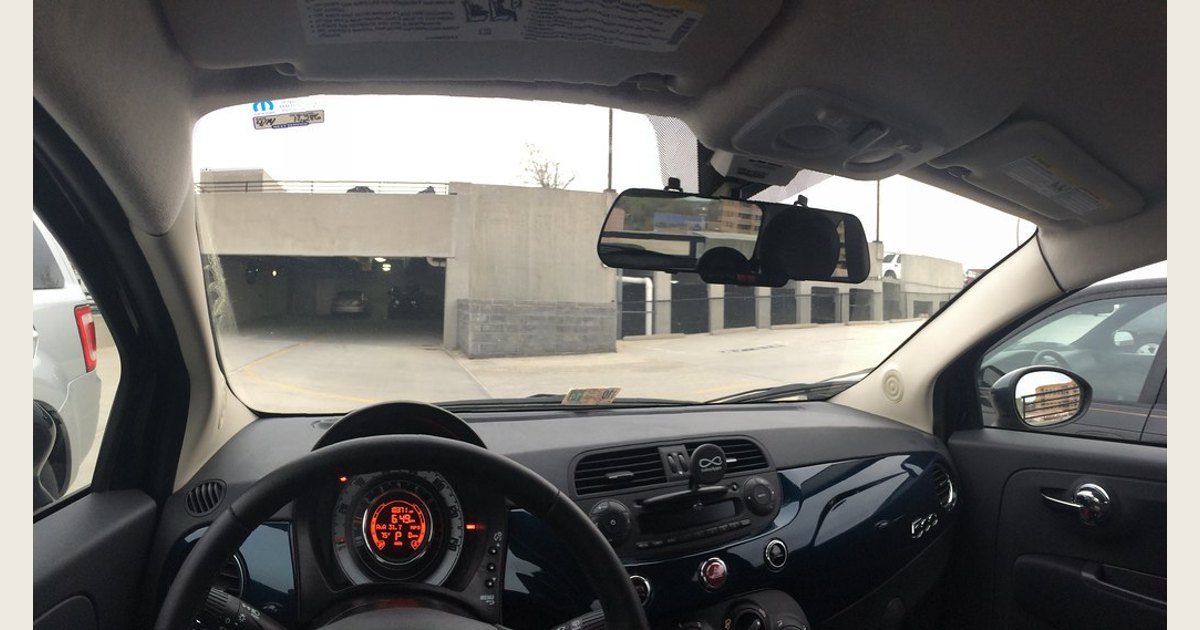
Photo: Fiat 500 with E-Prance (Novatek) rearview mirror dashcam by brownpau, licensed under CC BY 2.0. Resized and padded. Illustrative stock photo; no product testing is implied.